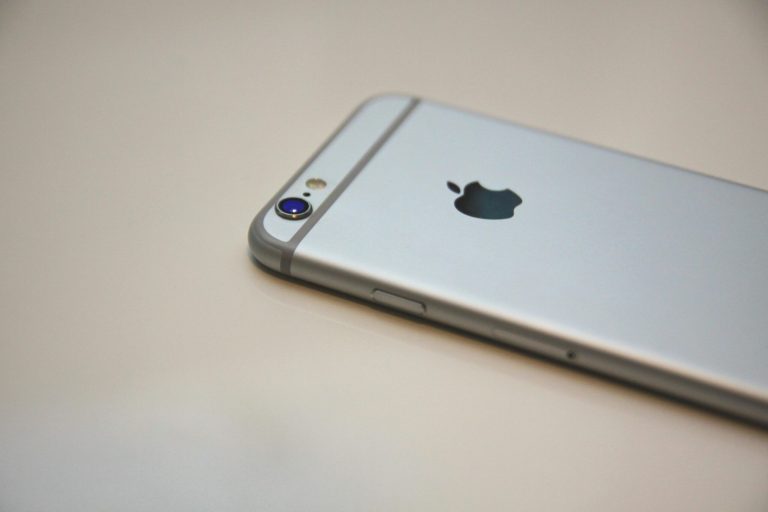
Let's face it, iPhones are amazing devices. But even the sleekest, most powerful iPhone can succumb to the dreaded slowdown. Apps take forever to load and scrolling feels sluggish. Pretty soon, simple tasks like sending an email through Microsoft 365 or running a simple online search for IT Support Near Me become frustrating ordeals.
If your phone has gone from speedy sidekick to sluggish snail, don't despair! We are sharing some easy tips to get your mobile managed device running in tip-top shape. And if your business needs an enterprise solution for staff phones, tablets and laptops, Simple IT has a complete mobile device management (MDM) portfolio of services to provide optimization of endpoint management security and productivity.
Give it a Restart: The Digital Power Nap
This might seem like a no-brainer, but you'd be surprised! How long has it been since you’ve turned off your device? Just like us, smartphones need an occasional reboot. Restart your phone. This clears temporary files, closes lingering apps, and frees up memory. It's a quick and easy way to give your device a much-needed refresh so it can maintain its business continuity planning.
Clean Out the Digital Clutter
Our iPhones can become digital packrats, hoarding photos, videos, and apps we no longer use. Do you really need all those selfies? This clutter can slow things down. Take some time to declutter your digital life by deleting what you don’t need, and consider running a data backup and cloud migration of items you’re not ready to delete, but don’t want taking space on your phone.
Photos and Videos
Review your photo and video library as this is where most space is consumed. Delete blurry pics, duplicates, and anything you don't need anymore. Consider using cloud storage services like iCloud Photos or Microsoft OneDrive. These store precious memories without clogging up your device's internal data storage space. Many phones also have an automated network management feature that easily store your pictures and videos to your cloud backup every time you snap a new pic.
Unused Apps
Be honest, how many apps do you really use every day or often enough to hold onto? Of course you have critical apps for work like your business email, password management and VOIP (Voice Over Internet Phone), but there are likely dozens you haven't touched in months that you’ll never miss after you’ve deleted them. This frees up phone storage space. It can also reduce background activity and improve battery life. When deleting apps, be mindful of those which you never really “use”, but serve critical value like Email Antivirus, Cloud Backup, and endpoint security. If unsure about one of these apps, it’s always good to check with an IT support professional or your company’s Remote IT helpdesk support… just to be safe!
Offload Unused Apps & Keep Data (iOS 11 and later)
This nifty feature lets you free up storage space by keeping an app's data while deleting the app itself. When you need the app again, you can simply download it without losing any saved data. It’s a handy virtualization service, like a mini virtual CIO (Chief Information Officer) running the best IT compliance and endpoint management within your device!
Remove Unneeded Podcasts
Many podcasts download directly to your devices internal storage without you realizing it. This allows the content to be available without a direct Wi-Fi connection for interrupted playback and limited buffering. Some shows and movies from streaming services will do the same. While these downloads are typically safe and follow data encryption standards that they don’t require special Privileged Access Management, they can sure fill up your device quickly and without you even realizing they’re being stored. If you listen to several podcasts or download videos to watch later, they can be taking up a significant amount of valuable space and bogging down your device performance.
Tame Background App Refresh
Background App Refresh allows apps to fetch new content and updates which can increase their size and data storage. This happens even when you're not actively using them. It can be helpful for staying up to date with software updates and patches, but it can also drain your battery, slow down your phone and gobble up space.
Review your Background App Refresh settings. Turn it off for apps you don’t use or need constantly to prevent them refreshing in the background or schedule their updates to take place when your phone isn’t in-use, like overnight or during travel.
Not Every App Needs to Know Where You Are
Many apps constantly track your location which means they’re requiring your phone to do work that you may not be benefitting from. They can do it even when you're not using them. This location tracking can drain your battery and impact performance. Review your Location Services settings and set endpoint management rules to restrict access for nosey apps that you don't need to track your every move.
Reduce Motion Effects
Apple's fancy motion effects include things like app parallax and zoom animations. They can be beautiful, but they can also be resource intensive. Turn off iPhone motion effects. This simple asset management step can free up processing power and make your iPhone run snappier.
Update Your Apps and iOS
App and iOS updates often include performance improvements and bug fixes. Make sure you're staying up to date with the latest versions of your apps and iOS. This ensures optimal performance and security. Note these updates are usually pushed to the device as they’re available and offer you the option to schedule them for off-peak hours as they can take a few minutes and often require a shut down and restart. This gets you the latest features and optimization without an interruption to your device when you need it.
Disable Automatic Downloads
Automatic app and iOS updates are convenient. But they can sometimes happen at inconvenient times, slowing down your phone or even shutting it down for an untimely reboot. Consider disabling automatic downloads. Update apps and iOS manually when you have time and a good Wi-Fi connection. Make this a recurring task on your calendar or advise it to be done during off-hours by your MSP or Managed IT Service Provider if your device is part of a small or medium sized businesses Mobile Device Management program. These updates are important for security, so you don’t want to forget them, but you also want them done without interrupting what you’re doing at that very moment.
Nuclear Option: Reset Your iPhone
If all else fails, a factory reset might be necessary. This wipes your iPhone clean and restores it to its original settings. It can be the most effective way to clear out bugs that might be causing slowdowns.
But be careful if you do need to use this nuclear option. Before doing a factory reset, always be sure to back up your device. Also, sign out of iCloud or Google. This can help to ensure you won’t lose important data. And, if you’re not 100% sure you have the chops to handle this, then it may be best to bring in a trusted IT consultant near you who can provide the onsite technical support you need, or possibly help you with remote technology service.
Check Your Battery Health
A degraded battery can also contribute to slowdowns. Head to your des battery settings which is usually found following these steps in your menu… Settings > Battery > Battery Health. Here you can see your phone’s maximum battery capacity. If it's below 80%, your phone might be throttling performance to conserve battery life. In this case, consider replacing your battery for optimal performance if earlier steps like clearing out data and running program updates don’t do the trick.
Follow these simple tips or call on an IT service desk for help with your mobile device management. They’ll help you diagnose the cause of your mobile device’s sluggishness, as well as get it running smoothly again, and maybe even better through their IT technology support and wizardry! A little maintenance goes a long way in keeping your smartphone happy and fast!
Need Help with a Smartphone or Tablet?
When your smartphone isn’t working right, it can be a real pain. Don’t struggle. Get help from the pros. Simple IT can provide an enterprise mobile device management plan for your company and staff for asset management optimization. We can diagnose through onsite IT troubleshooting and remote technical support for pc, laptop and smartphone issues to keep all your equipment running well for business continuity and staff productivity.
Contact us today at info@simple-it.us to see how we can help.
—
This Article has been Republished with Permission from The Technology Press.