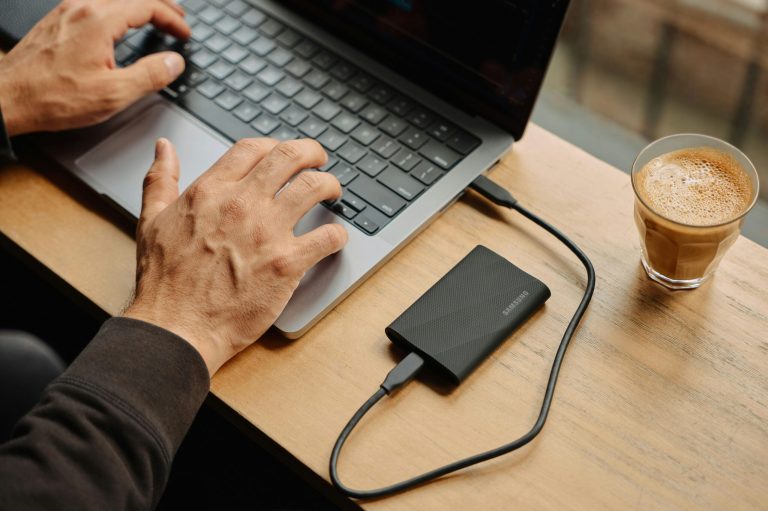
As a business professional, having appropriate device storage is essential for your productivity and seamless workflow. Whether you're working with large files, apps, media, or documents, understanding your device storage needs ensures you avoid performance issues, maintain efficiency and allow room for your future needs. Running out of storage can significantly disrupt your work, making it crucial to pick the right storage capacity for your needs. This guide will serve to help you determine how much storage you actually need based on your professional use.
What is Device Storage?
Device storage is the available space on your device (smartphone, tablet, laptop, or desktop) used to hold your data, including files, apps, documents, photos, and videos. If you run out of storage, you’ll be unable to save new data, which can impact your workflow. You may need to either upgrade your device, pay for additional storage, or rely on external storage solutions. Running short on data storage can also bring security risks as critical applications may not perform their security functions adequately, leaving you and your device vulnerable.
There are two primary types of storage:
-
Internal Storage: Built into your device and typically faster. It’s a fixed storage solution and cannot be removed or expanded in most devices.
-
External Storage: Options like SD cards, USB drives, and external hard drives offer more space and are removable, though they may not be as fast as internal storage.
Storage Options for Different Professional Devices
The specific device you use influences the available storage you may have. Additionally, with more data being accessible through cloud storage and web-based applications, the need for large internal data storage may not be as critical for some roles as it is for others. With that in mind, here are the typical ranges of storage capacities available for different types of devices:
-
Smartphones: Entry-level models often start with 32GB of storage and maybe even less, but higher-end smartphones can offer up to 1TB. iPhones don’t support expandable storage, while many Android models offer SD card slots for additional space. Smartphones can also serve as an External storage solution as they can be plugged into a PC or Laptop to transfer data. Cloud storage applications are also critically important for mobile devices to access data files which may not be physically on the device’s internal storage.
-
Tablets: Typically ranging from 32GB to 256GB, tablets may include slots for memory cards to expand storage capacity, USB ports to connect external data storage devices, and cloud storage capabilities and apps to access files which are not physically stored on the device.
-
Laptops: Laptops typically range from 128GB to 2TB, with some allowing you to upgrade storage later depending on your needs. With the confined space of a laptop, the amount of heat generated in that small space, and the amount of movement laptops undergo, it’s typically advised to aim for a lower storage space and to use external storage devices which can connect by USB and USB-C ports, as well as cloud storage for increased data access.
-
Desktops: Desktop computers offer larger storage, often between 256GB and 4TB, with easy options for future expansion. Different from a laptop, a desktop has a larger space to dissipate heat, as well they are less mobile, both of which are suitable for higher amounts of increased internal storage. Desktops additionally provide external storage expandability by USB and USB-C connected devices, and cloud storage.
Determining Your Storage Needs
Choosing the appropriate storage for your professional needs depends on how you use your device. Here’s a breakdown for different professional user profiles:
- Basic Users (32GB Mobile Device, 250GB Laptop, 250GB Desktop): If your work commonly involves browsing, checking emails, and using lightweight productivity tools, these minimum storage amounts across your devices will be sufficient. This is ideal for tasks like:
Email and web browsing
-
Basic word processing and spreadsheets
-
Light media storage
-
Standard Users (64GB Mobile Device, 500GB Laptop, 500GB Desktop): If you frequently run multiple apps and browser tabs, store large presentations, documents, or photos, then you’ll benefit from these expanded storage ranges which should provide ample space. Ideal for:
Office applications (Word, Excel, etc.)
-
Media libraries (documents, spreadsheets, presentations)
-
Moderate video and photo storage
-
Power Users (64GB Mobile Device, 500GB Laptop, 500GB to 1TB + Desktop): For professionals who work with large files, video editing, or have extensive app libraries, these recommended storage ranges would be suitable for:
Graphic design or video editing software
-
Large project files and datasets
-
Extensive photo/video storage
Managing Device Storage Effectively
To avoid running out of space, consider these strategies for optimizing and managing your device storage:
-
Leverage Cloud Storage: Cloud services like Microsoft OneDrive and SharePoint, Google Drive, and Apple iCloud allow you to store your files online, freeing up valuable space on your device and providing secure access to your data from virtually anywhere. Using cloud storage also provides remote access to files, enhancing collaboration and easy shareability with colleagues, as well as integration with outside programs like CRM’s and project management software.
-
Delete Unused Applications: Periodically remove apps or programs you no longer use. These can take up considerable space and slow down your system. Review device settings to help you identify and remove programs you haven’t accessed in a while, as well to run updates to keep apps secure.
-
Clear Cache and Temporary Files: Many apps store temporary data that accumulates over time. Regularly clearing these files can help free up significant storage from being filled with junk you no longer need.
-
Stream Media: Instead of downloading music, movies, or videos, use streaming services like Spotify or Netflix. Streaming is a great way to save storage space without sacrificing media access. If you do need to download media from streaming services from time to time, be sure to delete it once you’re done to regain that available data storage.
What Consumes the Most Storage?
Certain files and data types tend to consume more space. Here are the main culprits:
-
Videos: High-resolution videos, especially 4K content, require a lot of space. A single 1-hour 4K video can take up 7GB or more.
-
Photos: While individual photos use less storage than videos, they can add up quickly. 1,000 high-quality photos can easily take up 5GB.
-
Games: Large video games can consume a substantial amount of storage, sometimes over 100GB per game, especially those with advanced graphics.
-
Professional Software: Editing software, design tools, and simulation programs can require significant storage, sometimes in the range of 10GB to 50GB or more.
What to Do If You Run Low or Out of Storage?
If you run low on storage, or completely out of space, here are several solutions:
-
Cloud Storage Solutions: Moving non-essential files to cloud storage platforms like Microsoft OneDrive for your personal use items and SharePoint for shared and collaborative data is an affordable, secure and efficient option to preserve internal storage space on your devices. Similarly, other cloud-based storage solutions like Google Drive and Photos, Apple iCloud, and Dropbox provide cloud storage, as do some other business tools like CRM’s, Accounting applications and Project Management programs, but bear in mind there may be additional fees for exceeding default storage limitations. External Cloud Storage is an excellent way to save space on your device while maintaining security and access to your data.
-
External Storage Options: Use SD cards, USB drives, or external hard drives to extend your device’s capacity by transferring larger files or data you use less frequently. This is often an affordable and practical solution. Also, if you’re in a pinch and don’t have a dedicated external storage option, consider transferring data to your cell phone or other mobile devices if you need to move some critical data for a short timeframe.
-
Upgrade Your Device: If external storage isn't enough, consider upgrading to a device with more internal storage. This is especially important for professionals who work with large datasets or media files. While this may not be suitable for mobile devices, it’s a fairly simple process to upgrade the internal storage drive of a laptop or desktop, or to add a second storage drive pending the configuration of your desktop. Simple IT can quickly assess your device and provide a solution to efficiently expand its internal storage.
Choosing the Right Storage for Your Professional Device
When purchasing a new or custom renewed device, consider the type of work you do, including the size and number of files you work with regularly from your internal storage, as well as what you work with from cloud storage or web-based applications. For professionals who frequently store large files, work with high-definition media, or require specialized software, opting for 500GB to 1TB of internal storage may be wise. For more general use, 128GB to 256GB may suffice. Also know that the cost of increasing data storage when configuring specifications for a new or renewed device is quite affordable, so it's a good rule of thumb to size up for a few bucks more in order to be certain you’re “future-proofed” against later needs.
Final Thoughts
Choosing the right amount of data storage for your devices is essential to maintaining productivity and avoiding disruptions to your workflow. By understanding your usage habits – whether you're storing large media files, working with online or cloud-based business applications, or handling complex data sets – you can configure the right device storage option that best meets your professional needs now and into the future.
Investing in a device with sufficient storage is a wise decision for long-term success. And the availability of cloud storage and external drives can help to optimize device space and keep your system running fast, smooth and secure.
Have Questions About Storage for Your Device or How to Plan for an Upcoming Device Refresh? Contact Us Today
Simple IT regularly helps our clients refresh their corporate assets like laptops, desktops, tablets and mobile phones. In doing so, we’re able to confirm custom device configurations that will deliver the best performance to individual user needs at an affordable rate and with extended device protection. Unsure which storage option is best for your professional needs, or want a hand to help maximize your budget for an upcoming device refresh? We work with an extensive range of device providers and are ready to provide our personal guidance to help you to a great outcome. We’ve helped others make informed decisions about the perfect devices for their workforce … we’ll be glad to do the same for you!
—
**Article used with permission from **The Technology Press.