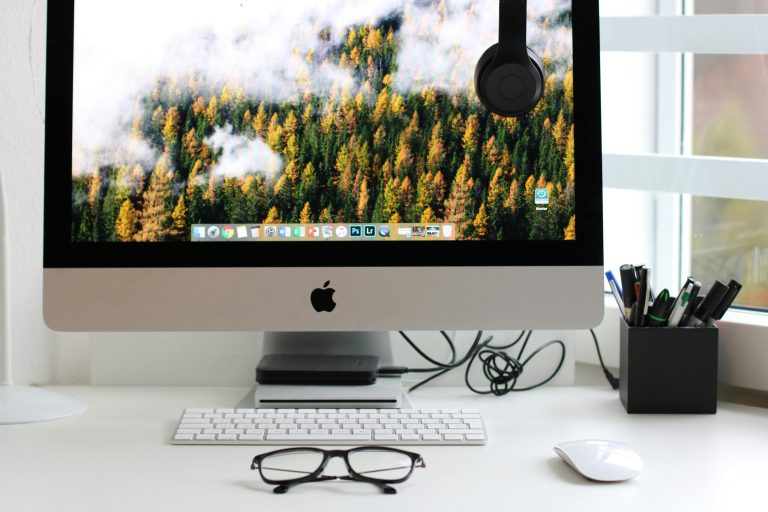
If you’re staring at your desktop all day—whether you're managing patient records, tracking inventory in a warehouse, running dispatch ops, or handling financial data—it might as well work for you, right? Customizing your desktop layout isn’t just about making it look cool (though, yes, that’s part of it). It’s about boosting your productivity, improving workflow, and even making tech feel a little less...well, technical.
At Simple IT, we help businesses across Northern Kentucky—especially those in finance, healthcare, logistics, manufacturing, and government—optimize their tech setups. Today, we’re sharing ten desktop customization tricks that can make your daily grind smoother, faster, and a lot more fun.
1. Switch Up Your Background
Start simple: swap that default wallpaper for something that actually inspires you. Whether it’s a family photo, a scenic view, or a clean gradient that helps you focus, the right image sets the tone for your day.
Pro Tip: On Windows, right-click your desktop > Personalize. On Mac, go to System Settings > Desktop & Screen Saver.
2. Play with Custom Themes
Themes change more than just colors—they overhaul fonts, icons, and windows. Think of it like a virtual office makeover. Minimalist? High-contrast? Retro neon? You do you.
Local IT love: At Simple IT, we often help financial and government clients set up accessibility-friendly themes tailored for comfort and compliance.
3. Tidy Up Those Icons
A cluttered desktop is the digital version of a messy desk. Create folders for projects, departments, or client types. Use color-coded icons for quick visual scanning.
This helps teams (especially in fast-paced logistics and healthcare roles) find files faster—and avoid costly mistakes.
4. Add Smart Widgets
Weather, CPU usage, email previews, calendar events—all on your screen at a glance. Widgets keep you informed without switching tabs.
-
Windows: Rainmeter
-
Mac: GeekTool
-
Linux: Conky
5. Create or Download Custom Icons
Personalized icons are like nameplates for your apps and folders. Tools like Canva, Figma, or GIMP make it easy. Use them for internal branding or visual consistency across employee devices.
6. Set Up Multiple Virtual Desktops
Keep dispatch apps separate from your CRM. Or separate HR files from inventory dashboards. Virtual desktops let you swipe between workspaces like a pro.
-
Windows: Task View > New Desktop
-
macOS: Mission Control > + Button
-
Linux: GNOME Workspaces
7. Use Custom Keyboard Shortcuts
Launch apps, take screenshots, open folders—all with a few keystrokes. Custom shortcuts help reduce clicks and keep you moving fast.
Especially helpful for teams using multiple business platforms like dispatch software, EMR systems, or financial dashboards.
8. Automate the Boring Stuff
Repetitive tasks? Automate them. Tools like AutoHotkey (Windows) or Automator (macOS) can do everything from batch renaming files to auto-emailing reports.
9. Customize Your Taskbar or Dock
Rearrange app icons, hide what you don’t use, and pin your must-haves. Clean, simple, and efficient.
Perfect for frontline teams and shared systems where quick access to the right tools makes all the difference.
10. Use Third-Party Software to Level Up
Apps like Rainmeter, Fences, uBar, and GeekTool let you display everything from real-time performance stats to motivational quotes.
Search online forums for templates and plugins—custom setups are only limited by your imagination.
Make Your Desktop Work for You
Your desktop is your digital workspace—so design it to match how you work. Whether you’re managing sensitive financial data, coordinating supply chain logistics, or monitoring patient records, these customizations will help streamline your workflow.
Need help setting up efficient, secure, and smart tech for your business in Northern Kentucky? Contact Simple IT today. We support local businesses with IT services, managed solutions, and next-level user experience upgrades.
—
This Article has been Republished with Permission from The Technology Press.